Radio Display
QGroundControl App.
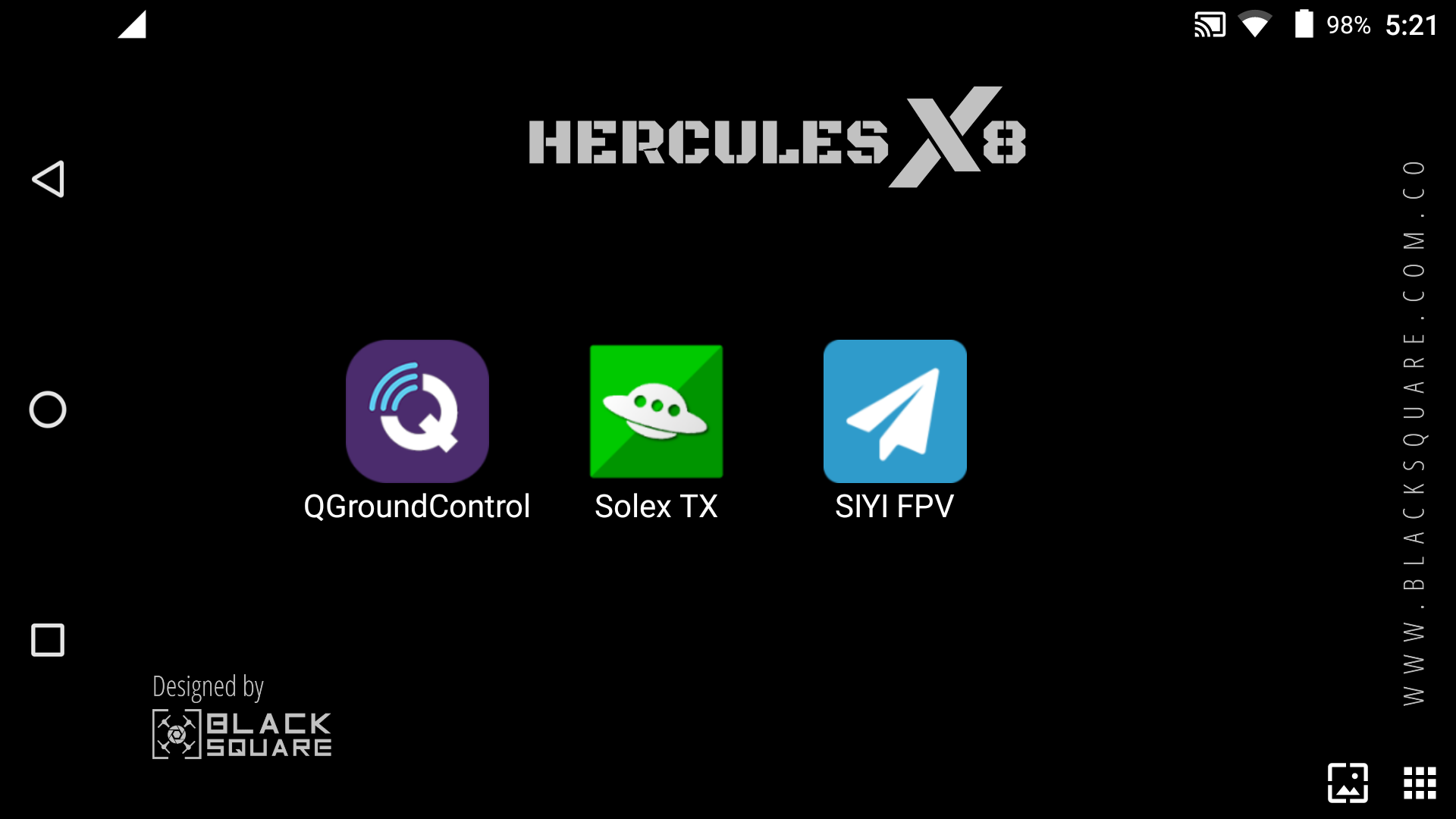
The Herelink Black Pro remote controller uses QGroundControl as its primary application for interacting with the HERCULES X8 Drone.
-
Make sure Both Drone and RC are powered.
-
Open QGroundControll App and wait until all parameter are loaded.
⚠️
QGroundControl automatically connects to the drone, providing real-time telemetry and control capabilities.
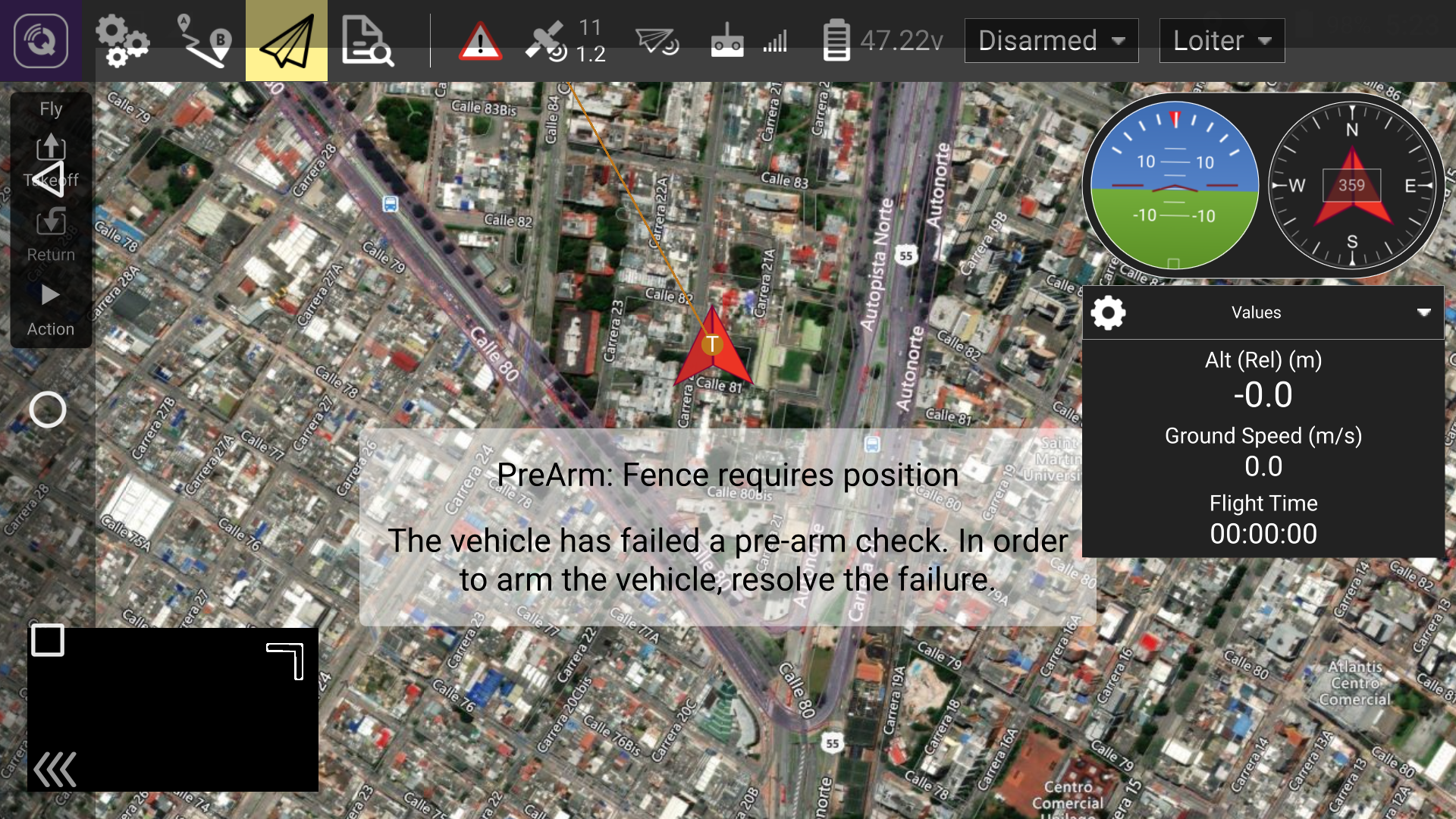
- The FPV camera will be off by default, for previewing the image, press and hold the camera button for 3 seconds.
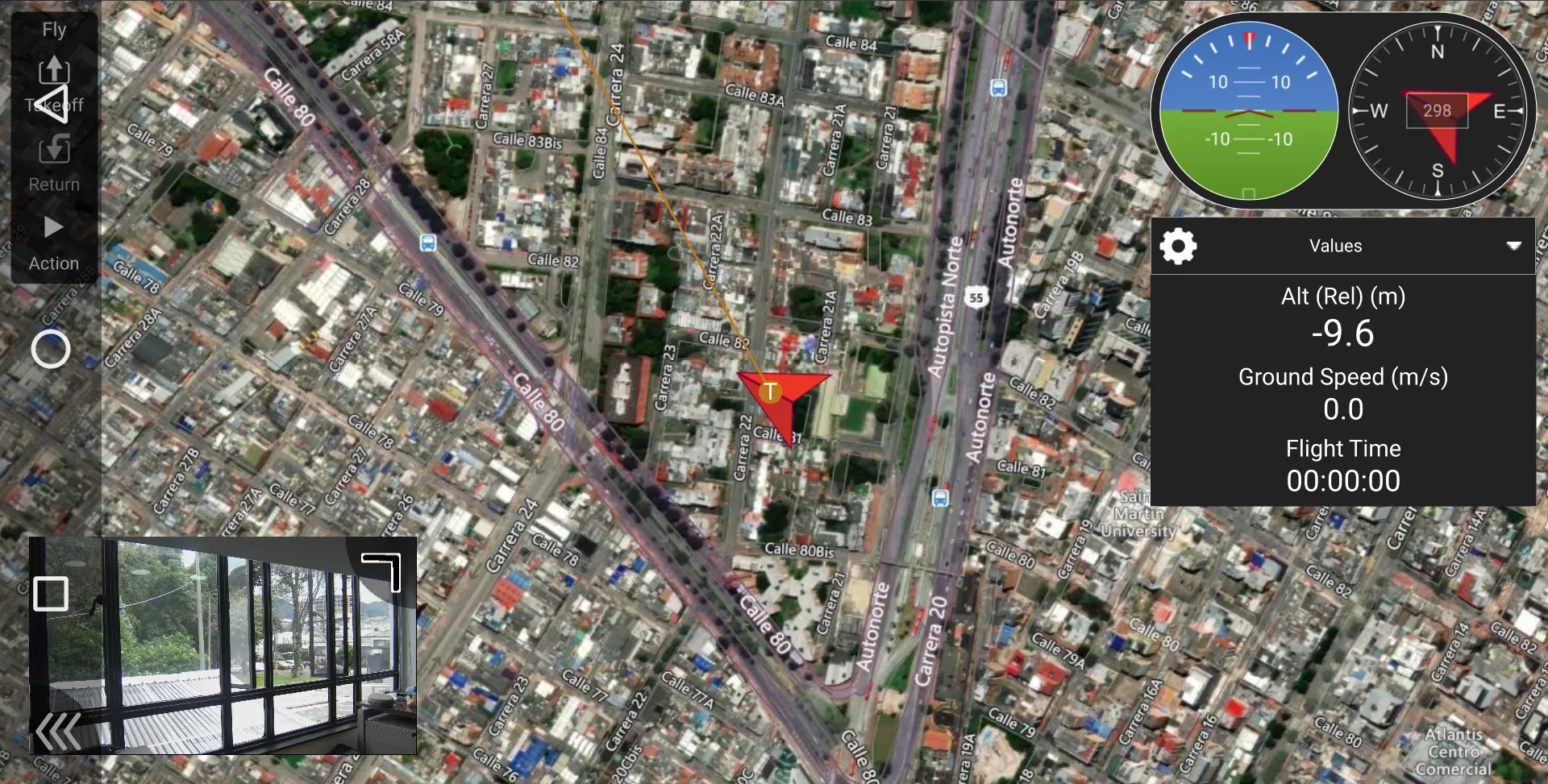
- You can toggle Map/FPV video by touching the left bottom thumbnail in the screen.
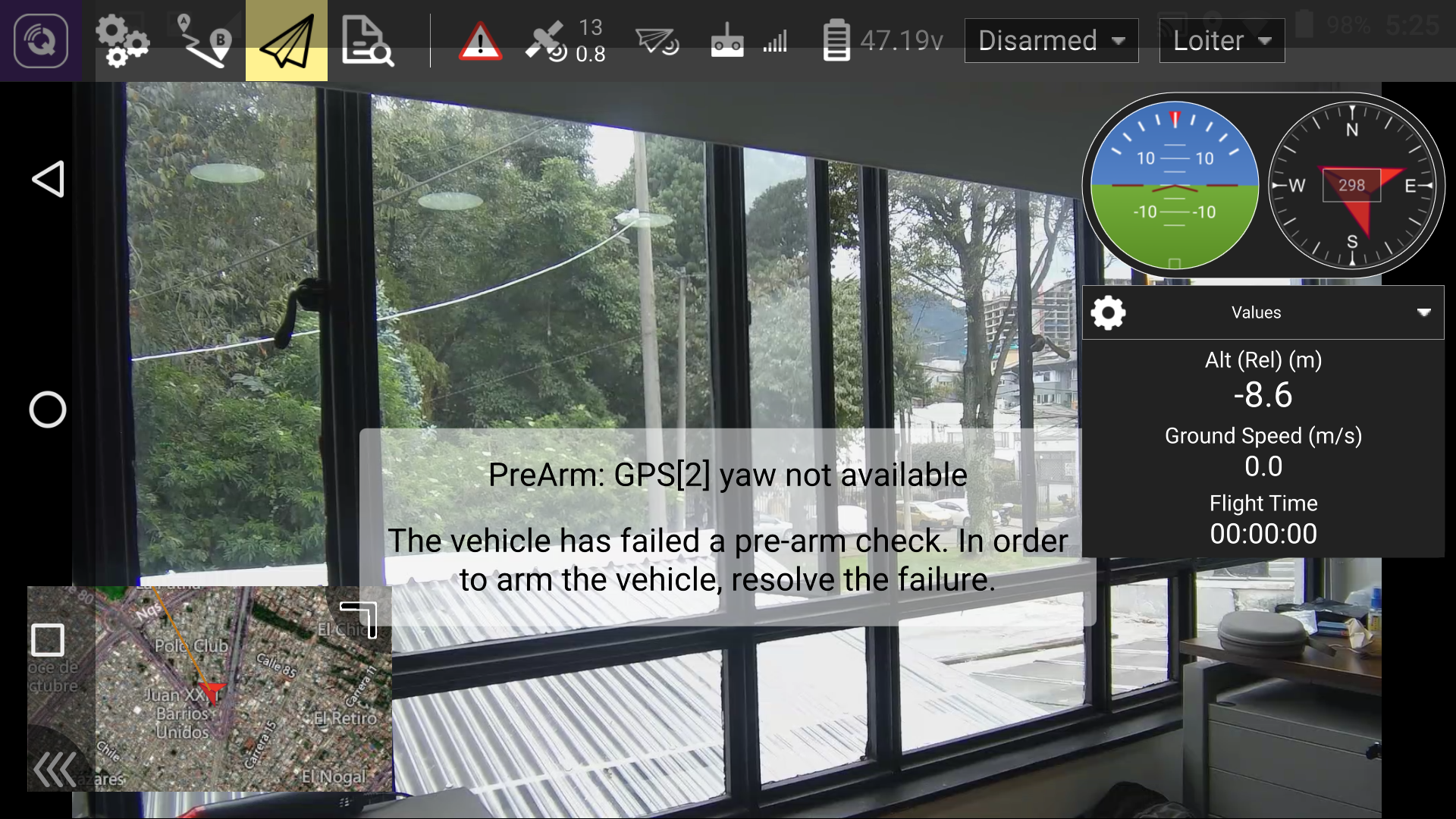
Toolbars.
The QGroundControl interface includes several toolbars for configuring and monitoring the drone:
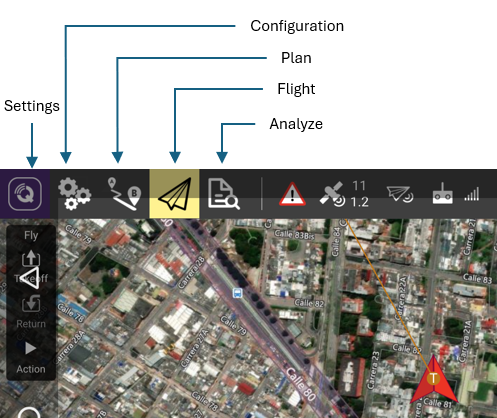
| TOOLBAR | DESCRIPTION |
|---|---|
| SETTINGS | Configure the QGroundControl application. |
| CONFIGURATION | Adjust vehicle parameters and settings. |
| PLAN | Create and manage flight plans. |
| FLIGHT | Monitor the drone's status during flight. |
| ANALYZE | Download and analyze flight logs. |
Flight Status.
The Flight Status section provides critical real-time information about the drone's operation:
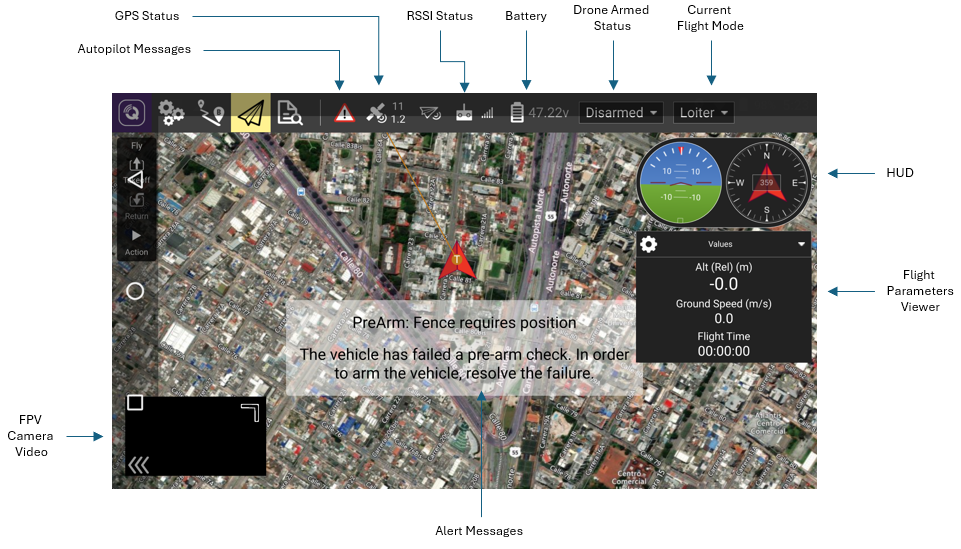
| PARAMETERS | DESCRIPTION |
|---|---|
| AUTOPILOT MESSAGES | Displays a list of messages from the drone. Critical messages are marked with an exclamation symbol. |
| GPS STATUS | Shows the number of satellites and the current HDOP value. |
| RSSI STATUS | Indicates the strength of the radio control signal. |
| BATTERY | Displays the remaining battery voltage. |
| DRONE ARMED STATUS | Display if the motors are Armed or Disarmed. |
| FLIGHT MODE | Display the current Flight Mode |
| HUD | Shows the drone's orientation relative to the horizon. |
| FLIGHT PARAMETERS VIEWER | Displays current flight parameters. Click the gear icon to customize the view. |
| FPV CAMERA VIDEO | Shows video feedback from the FPV camera. |