Hercules Profile
UgCS allows you to create Vehicles and Profiles for those vehicles. By default, there are three Vehicles created:
-
Ardupilot platform (APM-1)
-
Emulators:
- EMU-101
- EMU-102
The following steps show how to create a Vehicle Profile and assign it to the APM-1 Vehicle.
Steps to Create a Vehicle Profile
-
Navigate to the Vehicle Settings:
Access the "Vehicle Settings" tab in the UgCS interface. -
Import New Profile:
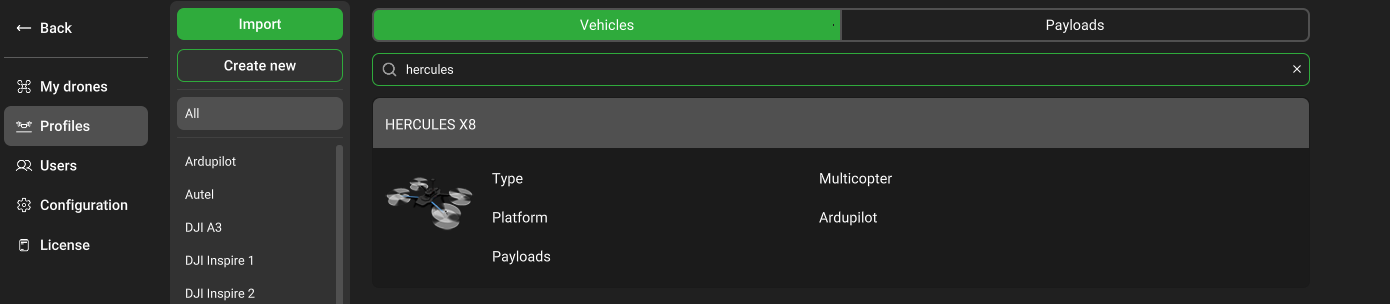
⚠️
Extra modifications in the profile settings may be required to optimize the profile to the real drone operation scenario.
Download UgCS profiles:
X8_HERCULES_V2,1_HX.profile 📄
⚠️
Geo fencing is configured by the Drone profile in the route section as:
- Fence radius, m
- Fence Altitude, m
-
Assign the Profile to APM-1 Vehicle:
- In the Vehicle List, select the APM-1 Vehicle.
- Under the "Profiles" section, assign the newly created profile.
-
Save Changes:
- Ensure all fields are completed correctly.
- Click "Save" to apply the changes.
- Profiles allow customization of settings specific to each vehicle, such as payload capabilities, flight characteristics, and communication settings.
- For detailed instructions, refer to the UgCS Documentation.