Software Updates
Newer versions of the software are uploaded periodically. Operators will be notified via email when updates are available.
Arducopter Firmware
Firmware Naming Convention:
HER{frame}_{ctrl}_M{ver}_ACopter{version}_{cube}.apj
| SEGMENT | EXAMPLE | DESCRIPTION |
HER | HER | Hercules drone prefix |
{frame} | X4, X8 | Frame type: X4 = quadcopter, X8 = octocopter |
{ctrl} | HL, TD | Controller: HL = Herelink, TD = Tandem |
M{ver} | 1, 2 | Main board version: 1 = Mauch, 2 = TDK-Matek |
ACopter{version} | 457, 460 | ArduCopter version (e.g., 457 = v4.5.7) |
{cube} | OP | Cube Model (e.g., OP = Orange Plus) |
.apj | - | ArduPilot firmware extension |
The approved Arducopter firmware version from Black Square can be found using the following link:
-
Connect the Cube flight controller to your computer via USB.
-
Open Mission Planner.
-
Navigate to Setup > Install Firmware.
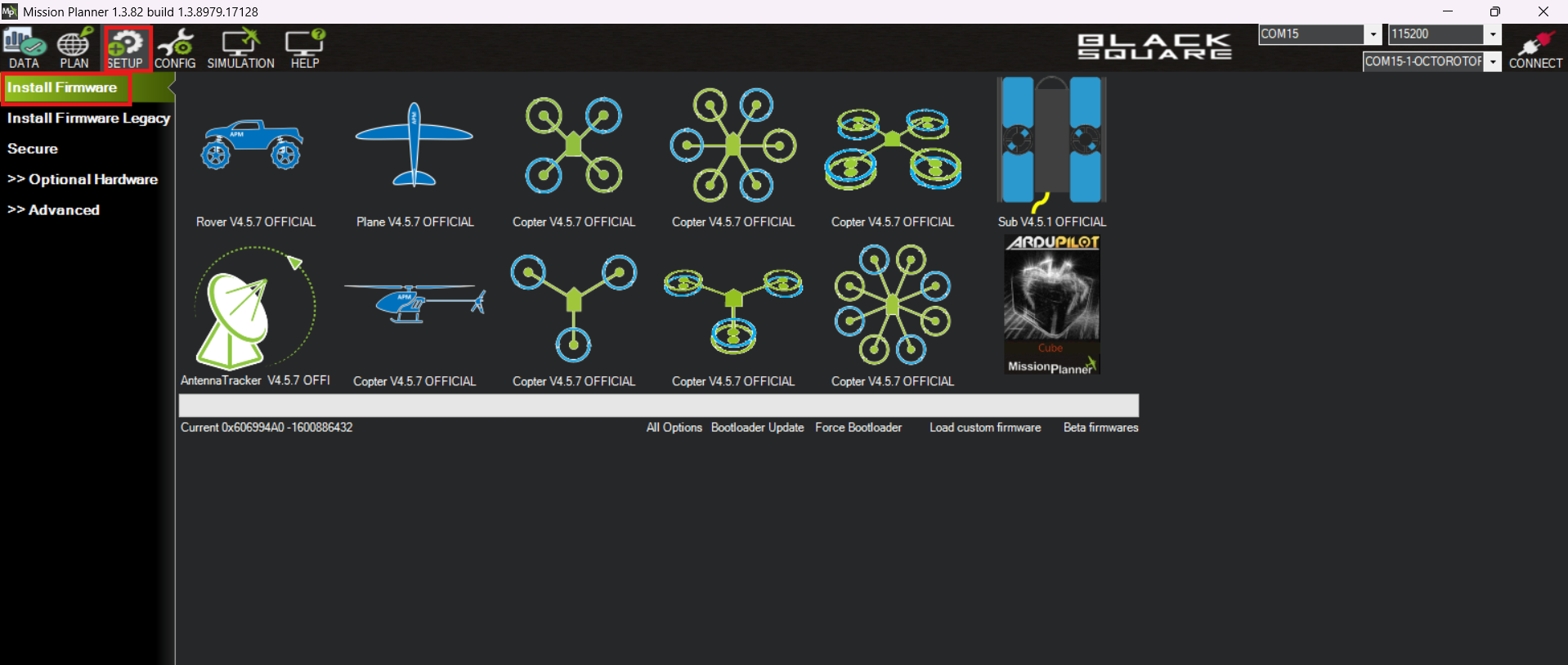
- Click Load Custom Firmware.
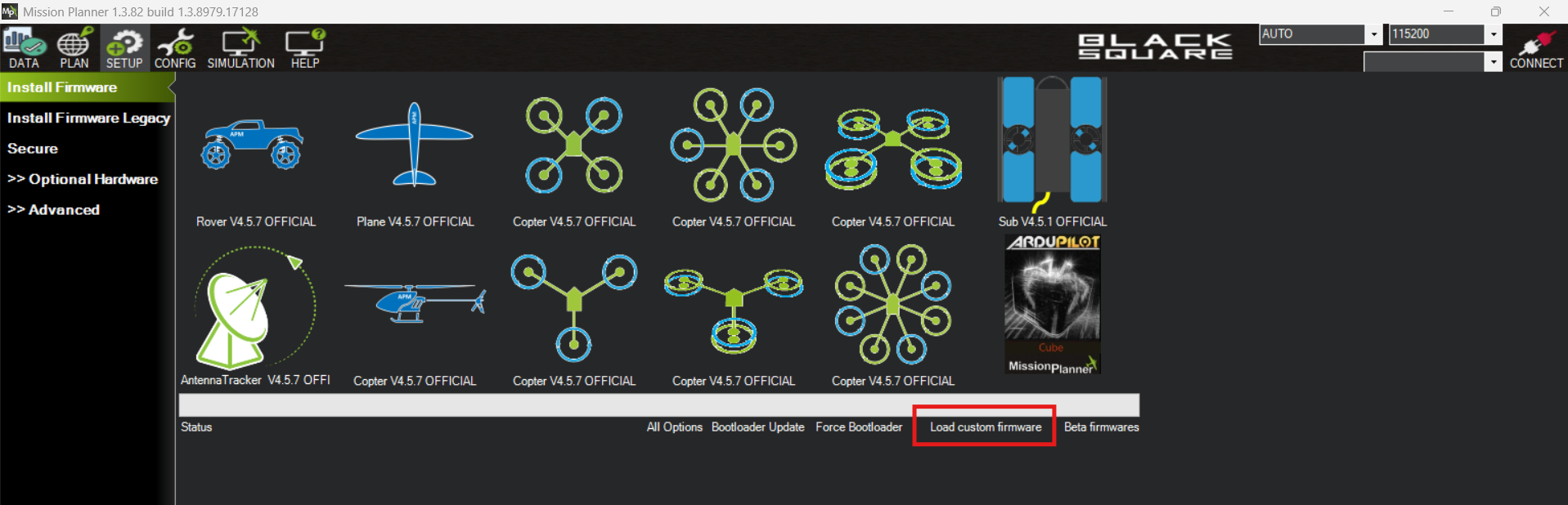
-
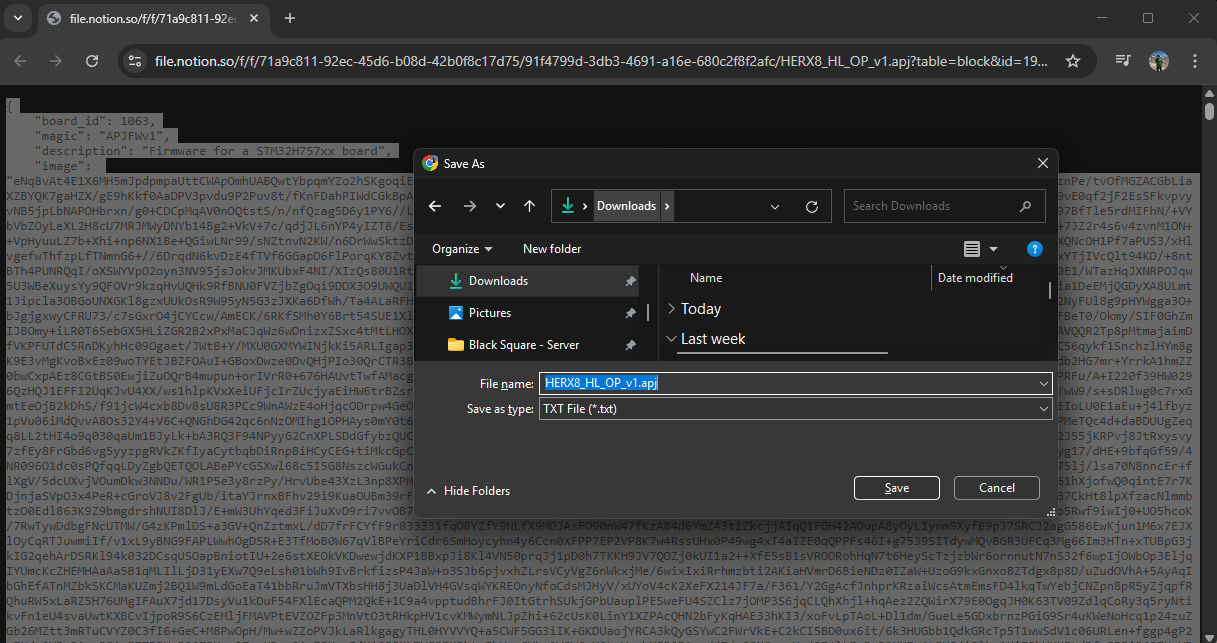
Go to, Firmware Versions and open the firmware.
-
Save the file in your PC as .apj file
-
Now in Mission Planner select the desired firmware file and wait for the installation to complete.
-
Wait until the firmware finishes uploading.
-
A green bar will fill during uploading.
-
If there is any issue during the update, the bar won’t fill completely, and a warning message will appear.
-
-
This issue is typically caused by the USB disconnecting during the upload. Ensure the connection remains stable during the process.
-
Make sure to carefully follow the steps to avoid issues during the update process.
- Once the process finishes, connect to the Cube to verify the installation.
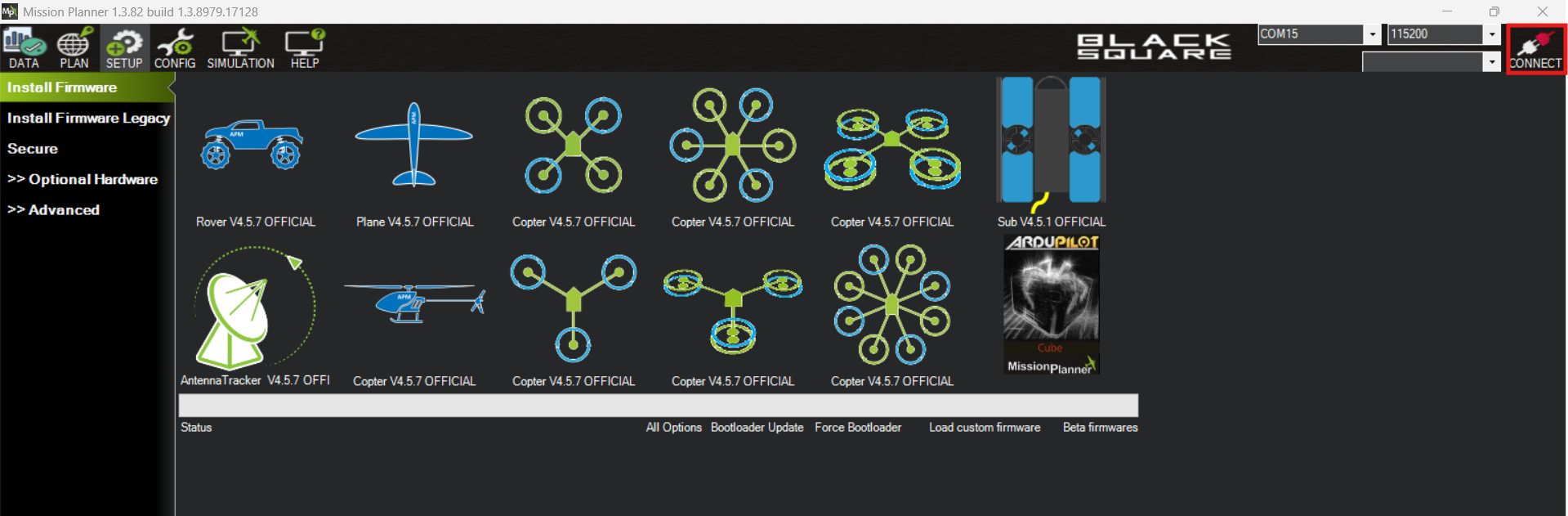
If everything was successful, your Cube should now be running the selected firmware.
-
Mission Planner Software
The approved Mission Planner software version from Black Square can be found using the following link:
(poner el link)
To Update Mission Planner:
Mission Planner is a standalone executable software. To use the latest version, simply follow these steps:
-
Download the latest version of Mission Planner.
-
Launch the
MissionPlanner.exefile from the folder containing the downloaded version.
-
No installation is required for Mission Planner. Simply running the executable will ensure you are using the latest version.
-
Make sure to download the software only from the approved link to avoid potential issues with unofficial versions.
-
Traceability and Factory Reset
There is no Factory Reset feature for the two pieces of software.
To ensure traceability, users should regularly check the currently installed versions of the software by looking at the top left bar in Mission Planner
-
Compare the installed versions with the available versions on the provided links whenever you want to implement an upgrade.
-
Keeping track of software versions ensures compatibility and helps avoid issues during updates.